Getting Started with Your New PayItMonthly Dashboard
We’ve developed and designed the PayItMonthly online portal to give you clear visibility over your instalment plans, finance agreements, and payment history - all in one secure, convenient place.
Whether you need to review and e-sign an agreement from a retailer, check how many payments remain on an ongoing purchase, track past transactions, or see your upcoming payments, the dashboard provides immediate, transparent access to your account details 24/7.
You can log in or create an account at any time by visiting app.payitmonthly.uk/account/login using your registered email address and password.
Below is a step-by-step walkthrough of what you can do across each key section of your dashboard:

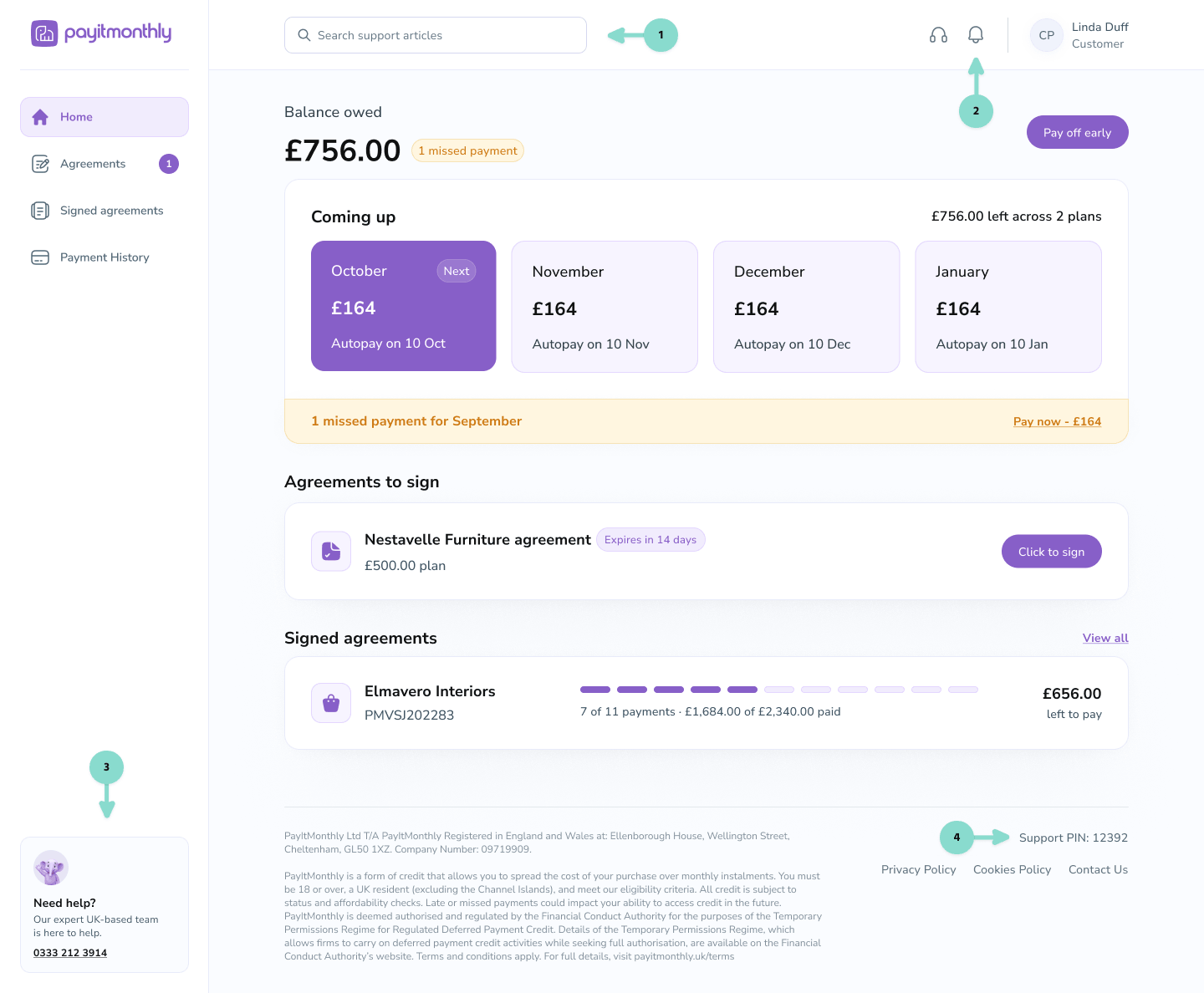
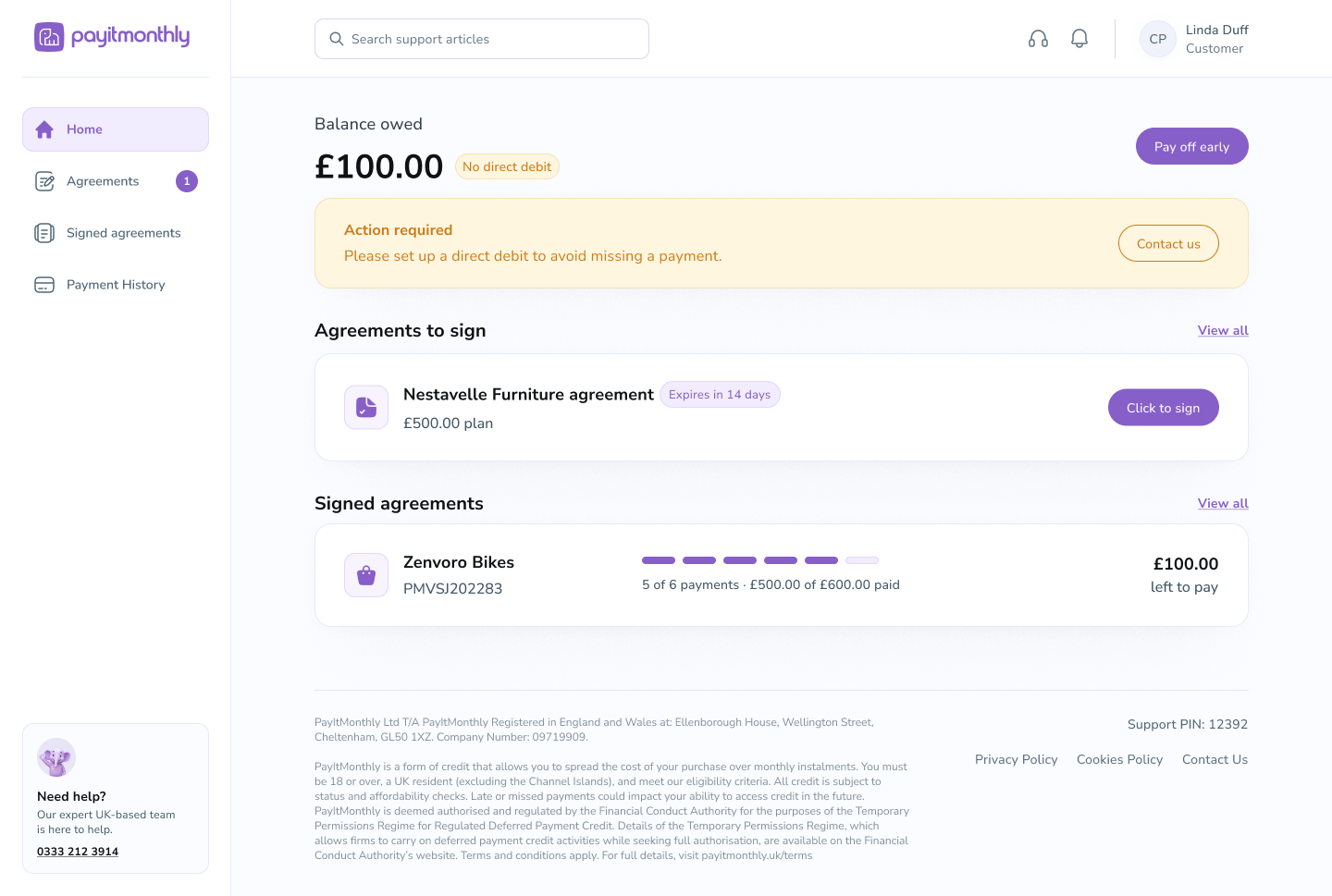
1. Home Dashboard Overview
When you first log in, the Home tab presents a summary of your account:
- Current Balance Owed: View your total remaining balance at a glance, along with payment status alerts.
- Action Required Alerts: Important notices, such as reminders to set up a Direct Debit or contact customer support, appear prominently at the top to help you avoid missed payments.
- Agreements to Sign: Any new finance plans awaiting your review and electronic signature are shown here, complete with plan amounts, expiration countdowns, and quick 'Click to sign' buttons.
- Active Signed Agreements: Check in on your ongoing payment plans. You can see your reference ID, the progress of your scheduled instalments (e.g., how many payments have been completed and total amount paid), and your remaining balance.
2. Agreements
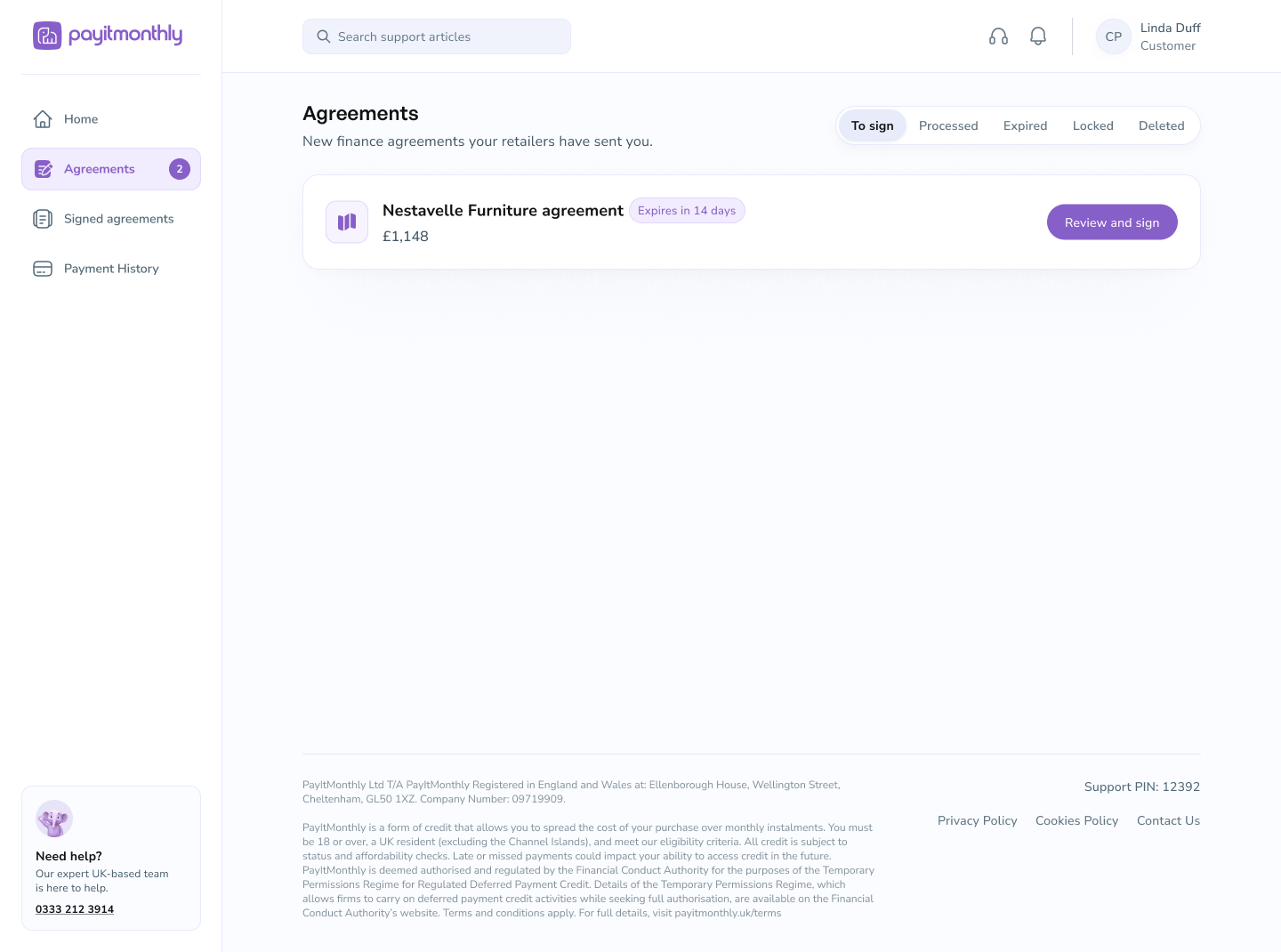
The Agreements section displays all new finance agreements sent to you by retailers.
- Review and Sign: Click 'Review and sign' on any pending agreement to read through the agreement details, view the total plan amount, and complete your application.
All agreements will have one of the following statuses:
- To sign: Active agreements awaiting your signature.
- Processed: Completed applications.
- Expired: Agreements that have passed their signing deadline.
- Locked: Agreements temporarily restricted or pending review.
- Deleted: Cancelled or removed agreement drafts.
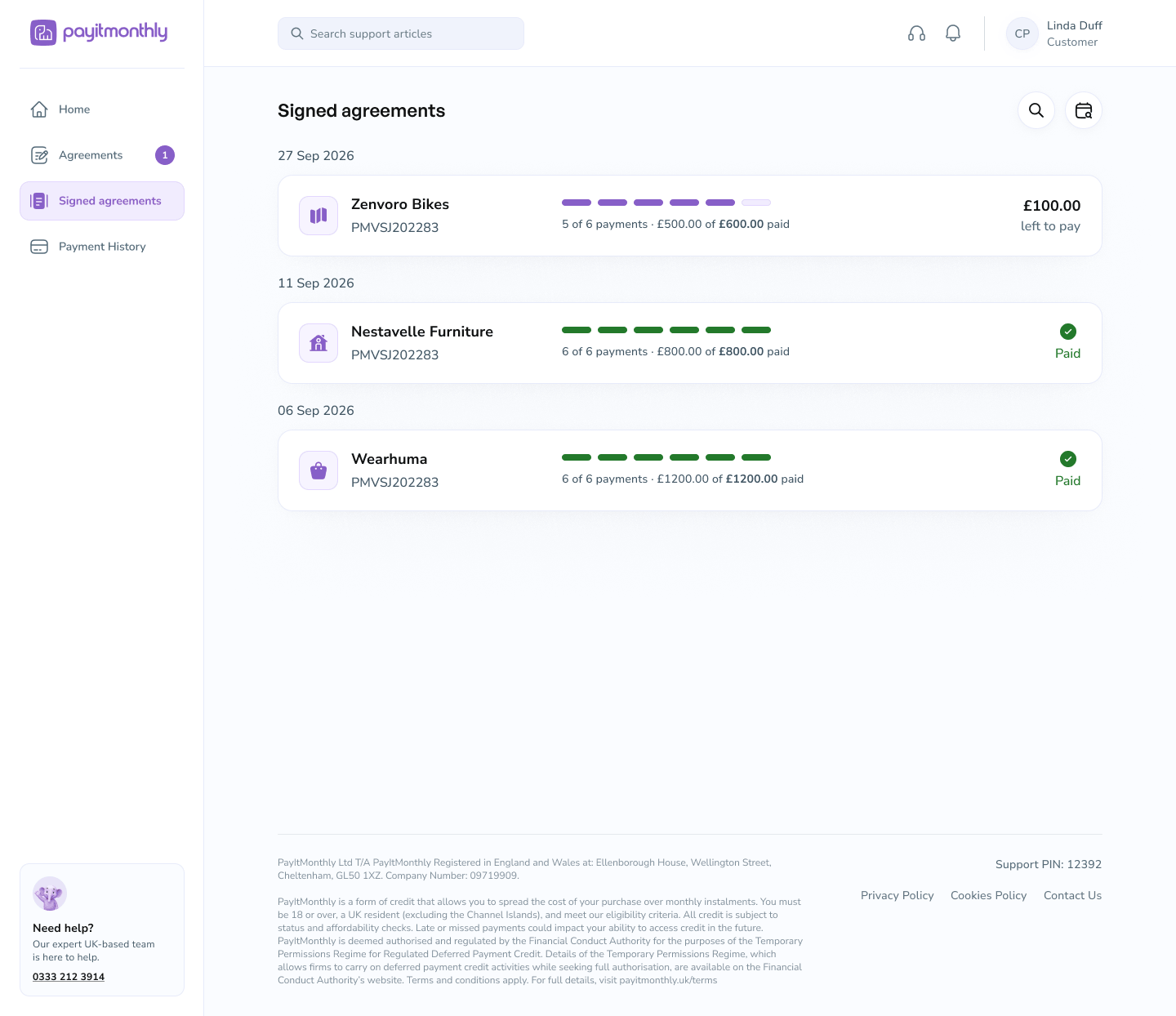
3. Signed Agreements
Navigate to Signed Agreements to track all active and historical finance plans:
- Ongoing Plans: View active agreements, instalment breakdowns (e.g., number of payments made vs. remaining), total amount paid, and balance left to pay.
- Completed Plans: Easily verify settled accounts marked with a green 'Paid' badge.
- Search & Filter: Use the search and calendar/date filter icons at the top right to locate specific agreements by date or reference number.
4. Payment History
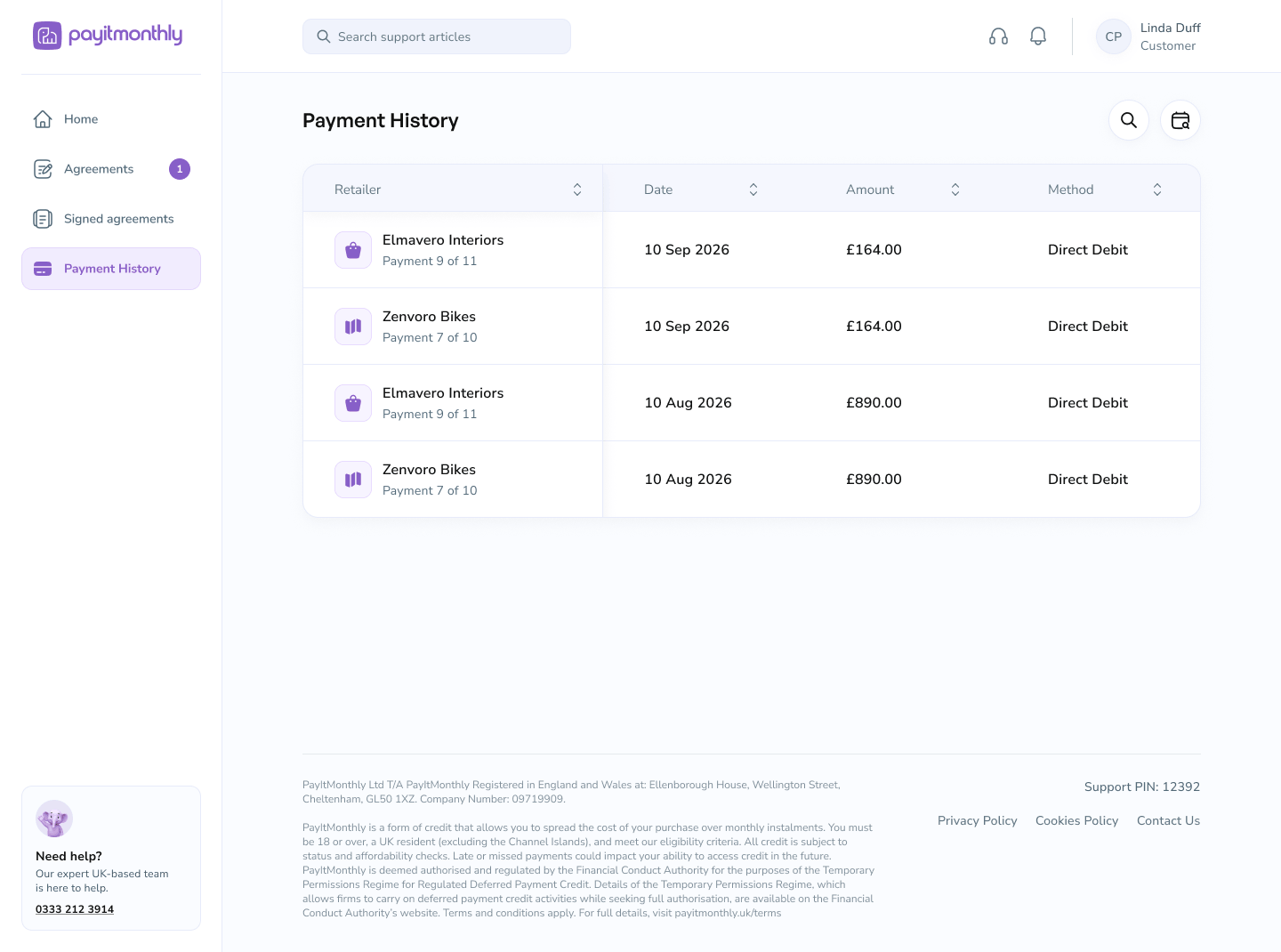
The Payment History tab gives you a detailed ledger of all payments made to date:
- Detailed Records: Review transactions sorted by Retailer, instalment number (e.g., "Payment 1 of 6"), Date, Amount, and Method (such as Direct Debit or Bank transfer).
You can filter entries by keyword or date range, sort table columns, and adjust how many entries are shown per page.
5. Help & Support Tools
Need assistance while using your account? Help is readily accessible directly from your portal:
- Support Articles Search: Use the search bar at the top of the screen to search help articles for quick answers.
- Notifications & Messages: Check your alerts via the bell icon located in the top navigation bar.
- UK-Based Support Team: Call our expert support team directly at 0333 212 3914 or use out chat function by clicking on the message icon at the top right of your browser.
- Support PIN: Located in the bottom right footer of your portal, your unique Support PIN can be quoted to our customer support team and it will enable them to see your screen and help guide you in real time if required.
By Alex Keith
January 20, 2026